
Retro gaming emulators on Android have transformed modern smartphones into powerful pocket-sized consoles capable of running thousands of classic titles. If you have ever wanted to play God of War on the bus or Pokémon during a break, this technology is the answer. This guide explores the best tools to turn your Android device into a nostalgia machine.
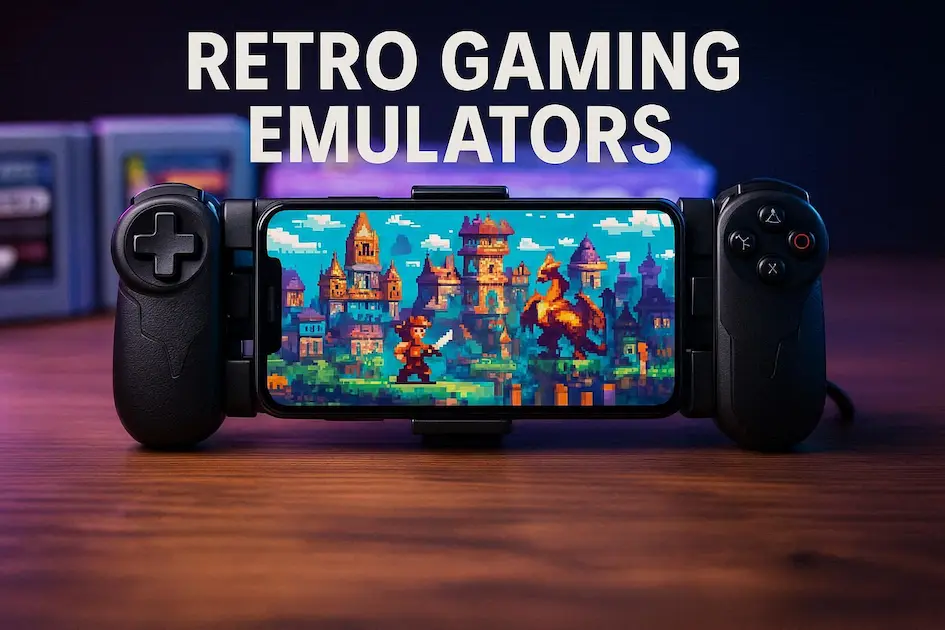
We have tested dozens of apps to bring you the definitive list. Below, we break down the top 5 retro gaming emulators, the best performance settings to maximize speed, and a safe setup guide. Whether you have a budget phone or a flagship, you are about to unlock a world of gaming history right in your pocket.
Why Retro Gaming Emulators are the Future
The era of carrying bulky handheld consoles is over because retro gaming emulators on Android now possess more processing power than the original hardware. You can carry an entire library of history’s greatest hits without needing extra hardware or expensive cartridges in your bag.
Furthermore, Android’s open ecosystem allows for a level of customization that proprietary consoles cannot match. Most retro gaming emulators allow you to enhance graphics, use cheat codes, and even save your game at any moment. This flexibility makes portability the defining feature of the modern experience.
Finally, the barrier to entry is non-existent because most of these tools are free or very cheap. Unlike collecting physical games, which has become incredibly expensive, free retro gaming emulators on the Play Store allow you to relive your childhood memories without breaking the bank or hunting for rare discs.
Top 5 Must-Have classic game emulators for Android
To get the best experience, you need the right software for each console. One “all-in-one” app often fails to deliver the performance of a dedicated tool. These are the five essential classic game emulators that currently dominate the Android scene in 2025.
1. PPSSPP (Best for PSP Emulation)
PPSSPP is widely considered the gold standard among classic game emulators due to its incredible stability. It allows you to play PSP games in full HD, often running them smoother than the original hardware.
- Upscaling: Increase the rendering resolution to 4x or 5x for crisp visuals on 1080p screens.
- Save States: Save your progress anywhere, even in the middle of a cutscene or boss fight.
- Customization: Remap on-screen touch controls or connect a physical controller effortlessly.
It is worth noting that while the free version is fully functional, the “Gold” version supports the developers. If you want the definitive PSP experience using vintage game emulators, this is the first app you should download.
2. Dolphin (GameCube/Wii Emulation)
Dolphin is a technical marvel that brings Wii and GameCube classics to mobile. Unlike other vintage game emulators, it is demanding; you will need a phone with a powerful processor (Snapdragon 8 Gen 1 or higher) to run games at full speed without significant frame drops or audio stuttering issues.
The highlight of Dolphin is its ability to emulate motion controls using your phone’s sensors. This means you can actually play Wii titles that require pointing or shaking, making it one of the most advanced retro gaming emulators on Android available today for 3D gaming.
3. ePSXe (PS1 Classic Games)
For PS1 fans, ePSXe remains a top choice among retro gaming emulators for its accuracy and ease of use. While newer competitors exist, ePSXe offers a plug-and-play experience that rarely requires complex configuration. It supports split-screen multiplayer, which is perfect for tablets.
The app excels in OpenGL plugin support, allowing you to enhance the graphics of blocky PS1 games significantly. You can smooth out textures and increase resolution, proving that retro gaming emulators on Android can make games like Crash Bandicoot look like modern remasters.
4. MyBoy! (GBA Emulation)
MyBoy! is the fastest and most feature-rich option among vintage game emulators for the Game Boy Advance. It is optimized so well that it can run at full speed on even the oldest budget Android phones without draining your battery life quickly.
- Link Cable Emulation: It is the only emulator that decently emulates the link cable over Bluetooth or Wi-Fi.
- Fast Forward: Speed up slow RPG dialogue or grinding sessions with a single button press.
- Bios Emulation: You do not need a BIOS file to start playing, making setup instant.
If you are a Pokémon fan, MyBoy! is essential. The ability to trade monsters with yourself via Bluetooth makes it a superior choice compared to other vintage game emulators on Android that lack multiplayer features.
5. M64Plus FZ (N64 Emulation)
Nintendo 64 emulation is notoriously difficult, but M64Plus FZ handles it better than other retro console emulators. It includes dozens of different video plugins, which is crucial because N64 games often require specific tweaks to render textures correctly without graphical glitches or black screens.
The app allows for “per-game” settings. This means you can set a specific video plugin for GoldenEye 007 and a different one for Mario 64, ensuring that your library runs perfectly. This flexibility is why it ranks high on our list of retro gaming emulators on Android.
Optimizing retro console emulators for Speed
Even with the best apps, you might encounter slowdowns. To achieve the best performance from your retro console emulators, you need to tweak the backend. This is the difference between a choppy, unplayable mess and a silky-smooth 60 FPS experience.
Reducing Lag in Emulators
If your audio is stuttering or the game feels slow, you need to adjust the settings of your retro gaming emulators. These settings sacrifice a tiny bit of visual fluidity to keep the game running at full speed on weaker hardware.
- Frame Skip: Set this to “1” to skip every other frame, instantly doubling perceived speed.
- Multi-Threading: Force the emulator to use all your phone’s CPU cores for processing.
- Disable Rewind: The “Rewind” feature consumes massive memory; turn it off for speed.
Applying these changes is the quickest fix for heavy games. However, be aware that setting Frame Skip too high can make the game look choppy, so find a balance that works for your specific retro gaming emulators on Android.
Graphics Settings (Vulkan vs OpenGL)
Choosing the right video backend is critical for retro gaming emulators. The debate often comes down to Vulkan vs. OpenGL. Vulkan is generally faster on modern Android devices, while OpenGL is more compatible with older drivers.
| Setting | Best For High-End Phones | Best For Low-End Phones |
|---|---|---|
| Backend | Vulkan (Faster) | OpenGL (Stable) |
| Rendering Res | 3x or 4x (1080p+) | 1x (Native) |
| Texture Filter | Anisotropic 16x | Linear / Nearest |
| Shaders | CRT / Scanlines enabled | None |
Correct graphics optimization ensures your battery doesn’t drain in minutes. If your phone gets too hot while using retro gaming emulators, lower the resolution immediately to prevent thermal throttling.
Setup Guide: How to Install classic console emulators
Finding Safe ROMs for Emulators
A guide on retro console emulators on Android is incomplete without discussing games. Legally, you should only emulate games you physically own by dumping the files yourself. Downloading copyrighted material is illegal in many jurisdictions, so always proceed with caution.
However, the internet archive and “abandonware” sites are often cited by preservationists. Always ensure files are in the correct format (e.g., .iso, .gba) and scan anything you download to ensure your classic console emulators run safely without malware.
Pairing Controllers with Emulators
Touch controls are fine for RPGs, but for action games, you need a physical controller. Most classic console emulators support modern controllers natively via Bluetooth, making the setup process much easier for console gamers.
- Put your controller (Xbox, PS4/PS5, or 8BitDo) into Bluetooth pairing mode.
- Go to Android Settings > Bluetooth and tap the controller name to connect.
- Open the settings of your retro gaming emulators, go to “Control Mapping,” and map buttons.
Once paired, your experience transforms. You can hide the on-screen touch overlay in the settings to enjoy the full screen, giving you a true console experience right on your mobile display using these classic console emulators.
Conclusion 💪 Turning your Android into a retro console isn’t just about gaming; it’s about customizing your digital life. By following this guide, you have secured the best performance settings and the top classic game emulators. Now, you can curate a library of classics that fits your style.
Don’t let your powerful hardware go to waste. Download these free retro gaming emulators, pair a controller, and dive back into the worlds you loved. Whether it is Zelda or Final Fantasy, your phone is now the ultimate gateway to the past.